Make it yours
Most settings go in weewx.conf, in the [[Belchertown]] section under [StdReport]. Put them there rather than in the skin's own skin.conf, because skin.conf is replaced when you upgrade the skin and your changes would be lost.
Here is a complete example. [[[Extras]]] holds options and [[[Labels]]] holds text:
[StdReport]
    [[Belchertown]]
        skin = Belchertown
        HTML_ROOT = /var/www/html/weewx/belchertown
        [[[Extras]]]
            logo_image = "https://example.com/my-logo.png"
            theme = auto
            forecast_enabled = 1
            forecast_api_id = "your_id"
            forecast_api_secret = "your_secret_key"
            earthquake_enabled = 1
        [[[Labels]]]
            [[[[Generic]]]]
                home_page_header = "Belchertown Weather Conditions"
                footer_copyright_text = "My Weather Website"
Restart weewx after any change. Every option is listed in All skin options.
Change the site title and other text
Every piece of text on the site is a "label" you can change or translate. To change one, copy it into [[[Labels]]] → [[[[Generic]]]] as in the example above. The full list is in skin.conf under [Labels] → [[Generic]]. The most common ones:
| Label | Default | What it is |
|---|---|---|
| home_page_header | "My Station Weather Conditions" | Heading on the Home page |
| graphs_page_header | "Weather Observation Graphs" | Heading on the Graphs page |
| reports_page_header | "Weather Observation Reports" | Heading on the Reports page |
| records_page_header | "Weather Observation Records" | Heading on the Records page |
| about_page_header | "About This Weather Station" | Heading on the About page |
| powered_by | "Observations are powered by a Personal Weather Station" | Text in the header |
| footer_copyright_text | "My Weather Website" | Text after the year in the footer's copyright |
| footer_disclaimer_text | "Never make important decisions from this website." | Disclaimer in the footer |
The skin also ships in Catalan, German, French and Italian: add lang = ca, lang = de, lang = fr or lang = it under [[Belchertown]]. Text a language file doesn't cover stays in English.
lang sets the date and number format as well, unless you set belchertown_locale yourself. Dates and live values work with any language. For the numbers built on the server, such as the Records page and the NOAA reports, install the matching locale on your server (for example de_DE.UTF-8).
Chart titles, series names and button text in graphs.conf are labels too: a Temperature title is looked up under the label named Temperature, and a title with no label shows as written. To translate one of your own, add it to [[[[Generic]]]] with the title as the name, in quotes if it has spaces: "Solar Panels" = Solarmodule.
Highcharts' own text, such as the chart menu and the reset zoom button, goes in [[[Texts]]] → [[[[Highcharts]]]] under the name Highcharts gives it in lang.
Dates and times in your language
Dates and times are formatted in the browser by Day.js, using your site's locale (see above) and your server's timezone. Day.js uses the same format codes as moment.js, which earlier versions of the skin used, so formats you set before still work. The formats are labels too (look for the moment.js section under [Labels] in skin.conf). If a date looks wrong for your locale, set the right locale and timezone on your weewx server and restart it, or write the format out yourself. For example, Wednesday 15 May 20:25 is dddd DD MMM HH:mm:
ddddis the full day name (Saturday);dddis the short one (Sat)DDis the day with a leading zero (05);Dwithout (5)MMMis the short month (Jan);MMMMthe full one (January)HHis the 24-hour hour with a leading zero (02);Hwithoutmmis the minute with a leading zero (08);mwithout
Use metric units
Belchertown uses whatever units weewx is set to. To switch everything to metric, add this to weewx.conf and restart weewx:
[StdReport]
    [[Defaults]]
        [[[Units]]]
            [[[[Groups]]]]
                group_altitude = meter
                group_degree_day = degree_C_day
                group_pressure = mbar
                group_distance = km
                group_rain = mm
                group_rainrate = mm_per_hour
                group_speed = meter_per_second
                group_speed2 = meter_per_second2
                group_temperature = degree_C
The weewx documentation lists the other units you can choose. The forecast has its own unit setting: see Forecast units.
Add your logo
Set logo_image (and optionally logo_image_dark for dark mode) in [[[Extras]]] to the full web address of your logo. About 330 pixels wide by 80 pixels high fits best. Without a logo, the site shows site_title instead.
Light, dark or automatic theme
Set theme in [[[Extras]]] to light, dark or auto. Auto switches to light at sunrise and dark at sunset, using your station's latitude and longitude.
Visitors can flip between light and dark with the switch next to the menu. That choice lasts until they close the tab, even when your theme is auto. You can also force a theme with the address: add ?theme=dark, ?theme=light or ?theme=auto to the end, for example http://your-server/weewx/belchertown/?theme=dark.
About and Records pages
The About page is yours to fill: your station, where it is, who runs it, where else its data goes. Until you write one, it shows the skin's welcome text. The Records page can have your own text above the records too.
To write your About page (package install shown; on a pip install the folder is ~/weewx-data/skins/Belchertown and you leave out sudo):
cd /etc/weewx/skins/Belchertown
sudo cp about.inc.example about.inc
sudo nano about.inc
Replace the welcome text with your own, save, and the page changes at the next report. There's no need to restart weewx. For the Records page, do the same with records.inc.example and records.inc. Upgrades never overwrite these files.
Plain text works, but a little HTML makes it look right: <p> around each paragraph, <h2> for a heading, <ul> and <li> for a list, <a href="..."> for a link and <img src="..."> for a picture. weewx tags fill in live facts about your station each time the page is built, such as $station.hardware, $station.location, $station.altitude or $station.uptime.long_form.
An About page to start from
Copy this into about.inc and change the parts in capitals. The chart credit follows your chart library by itself.
#encoding UTF-8
<div class="entry-content about-outer" itemprop="text">
    <h2>About this station</h2>
    <p>This weather station is in YOUR TOWN, at $station.altitude above sea level.
    It has been running since YEAR, and is run by YOUR NAME.</p>

    <h3>Equipment</h3>
    <ul>
        <li>Weather station: $station.hardware</li>
        <li>Computer: A RASPBERRY PI 4, running for $station.os_uptime.long_form</li>
        <li>Software: <a href="https://weewx.com/">weewx</a> $station.version, running for $station.uptime.long_form</li>
    </ul>

    <h3>Where else to find this station</h3>
    <ul>
        <li><a href="https://www.wunderground.com/dashboard/pws/YOURID">YOURID</a> on Weather Underground</li>
        <li><a href="https://www.pwsweather.com/station/pws/YOURID">YOURID</a> on PWSweather</li>
    </ul>

    <h3>This website</h3>
    <ul>
        <li>The <a href="https://poblabs.github.io/weewx-belchertown/">Belchertown skin</a> $belchertown_version for weewx</li>
        <li>Charts by #if $chart_library == "echarts"#<a href="https://echarts.apache.org/">Apache ECharts</a>#else#<a href="https://www.highcharts.com/">Highcharts</a>#end if#</li>
        <li>Forecast from <a href="https://open-meteo.com/">Open-Meteo</a> and alerts from the <a href="https://www.weather.gov/">National Weather Service</a></li>
    </ul>
</div>
Keep the #encoding UTF-8 line at the top, so accents and symbols such as ° show correctly. A line that starts with # is read by weewx as an instruction, so don't start your own lines with #.
Want photos, a table of station facts and charts beside your text? The two-column About page example is ready to copy.
Choose what's on the home page, and in what order
The home page is made of five blocks:
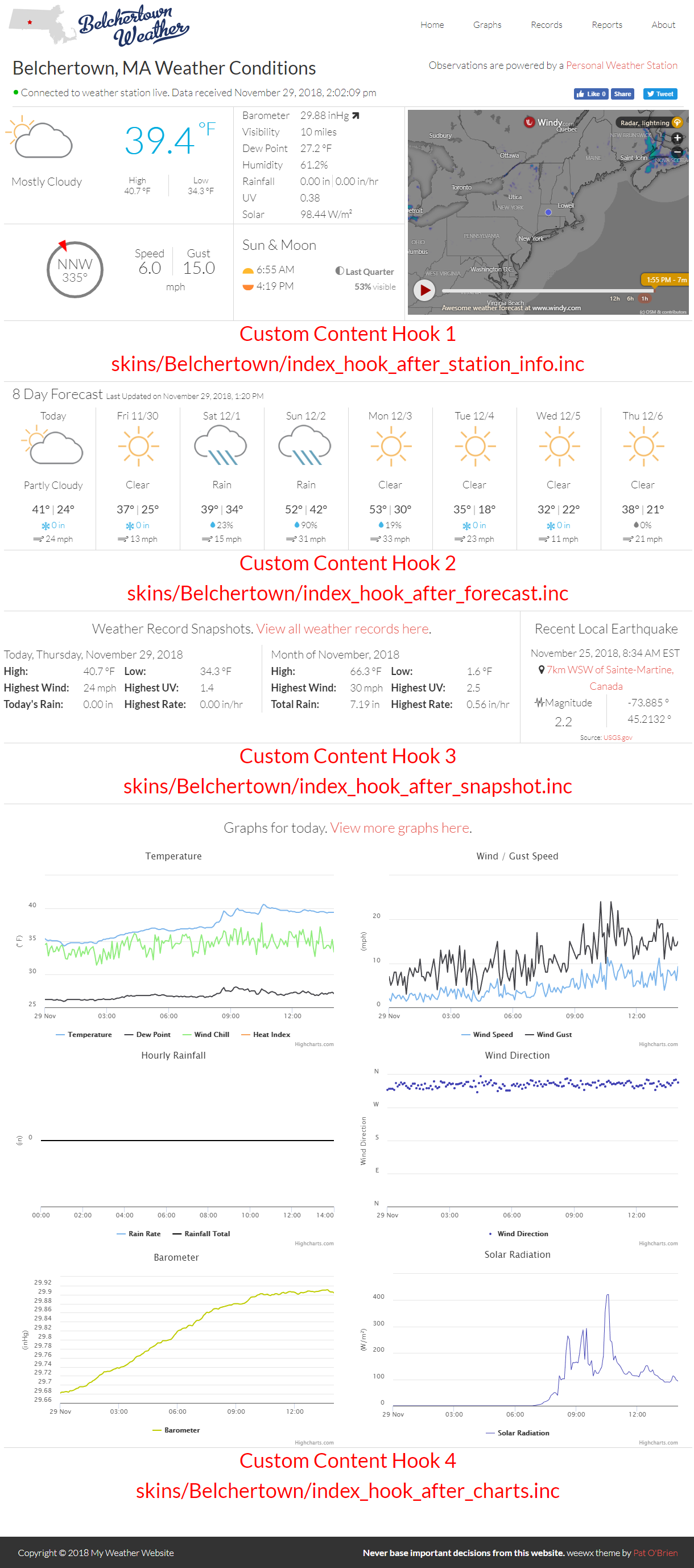
conditions: the current temperature, wind, station readings, sun and moon, and the radarforecast: the forecastonthisday: today compared with the same date in every past year: the record low and high, the average, and a note when today is unusual, such as "Coldest October 7 on record so far". It appears once your station has data from at least one earlier year.snapshot: today's and this month's highs, lows, wind and rain, and the latest nearby earthquakecharts: the charts
home_sections lists them in the order they appear. To reorder them, change the order; to hide one, leave it out. For example, to put the forecast first and drop the snapshot, add this to [[[Extras]]] in weewx.conf:
        [[[Extras]]]
            home_sections = forecast, conditions, charts
You can also add your own block, such as a webcam picture or a note to visitors. Make up a name, put it in home_sections, and create a file called home_ plus that name plus .inc in the Belchertown files folder. For example, with home_sections = conditions, webcam, forecast, snapshot, charts, the skin shows the contents of home_webcam.inc between the conditions and the forecast. HTML is fine, and weewx tags such as $current.outTemp work too.
Home page layouts
Visitors can pick how the home page is laid out with the layout button (the four squares next to the sun/moon button):
- Dashboard: everything in the order of
home_sections. This is the normal layout. - Forecast first: the forecast at the top, with the current conditions under it.
- Radar first: a big radar across the top, with the current conditions under it.
- Charts first: the charts at the top of the page.
The choice is remembered in that visitor's browser, so it's still there next time. To change what everyone sees on their first visit, set home_view in [[[Extras]]]:
        [[[Extras]]]
            home_view = radar
Storm mode switches to Radar first by itself while it's raining at your station, or while an alert about storms, thunder, tornadoes, floods, hurricanes, rain, snow, sleet or ice is in effect, and switches back afterwards. Alerts about frost, heat, wind, fog or air quality don't trigger it, since the radar doesn't help with those. It only applies to visitors who haven't picked a layout themselves. To turn it off, set storm_view = 0 in [[[Extras]]].
You can also link straight to a layout by adding ?view= and its name to your home page address, for example http://your-server/weewx/belchertown/?view=charts. The wall display uses the same idea with ?view=kiosk.
Units button (°F or °C)
The header has a units button that shows the temperature unit on screen, such as °F. Pressing it shows the whole site in the other system: °F and °C, mph and km/h, inches and millimeters (rain, rain rate and snow), inHg and hPa, miles and kilometers, feet and meters, and degree days. Everything on the page changes, including the forecast, the records, live updates and the charts. Each visitor's choice is remembered in their browser; your station keeps its own units, and visitors who never press the button see those.
The NOAA reports on the Reports page stay in your station's units. To hide the button, set unit_toggle_enabled = 0 in [[[Extras]]].
Add your own content to the home page
There are also four fixed places for your own content (HTML is fine). Create any of these files in the Belchertown files folder:
- Below the station info:
index_hook_after_station_info.inc - Below the forecast:
index_hook_after_forecast.inc - Below the records snapshot:
index_hook_after_snapshot.inc - Below the charts:
index_hook_after_charts.inc
Your own pages and menu links
You can add whole pages of your own (a webcam page, a page about your garden's rain gauge) and links in the menu at the top. See Your own pages and charts.
Custom CSS
To change the look and keep your changes across upgrades, create a file called custom.css in the Belchertown skin folder (where is it?). It's copied to your website at each report and loaded after the skin's own styles, so its rules win. For example, to make the page headings green:
h1 { color: #2e7d32; }
Rules that start with .dark apply only in dark mode, for example .dark h1 { color: #81c784; }. Your browser's developer tools (F12, then the arrow at the top left) show which class names to use: point at a part of the page and they show its name.
Your own scripts, jQuery and Bootstrap
Since version 3.0 the skin no longer uses jQuery, so pages load faster. Older custom files (index_radar.inc, index_hook_after_*.inc, home_*.inc and the like) often do use it, so the skin checks your .inc files each time it builds the site:
- None of them use jQuery: it isn't loaded at all. Nothing to do.
- One of them does: jQuery and Bootstrap's scripts are loaded for it, so your page keeps working, and the weewx log says which file, for example:
index_radar.inc uses jQuery, so jQuery is loaded for it.Your site is fine as it is; updating that file just makes the page a little lighter.
Tabs and popups written the Bootstrap way (data-toggle="tab", data-toggle="modal") work without jQuery, so you can leave those as they are.
The skin no longer loads the Bootstrap stylesheet either; it has its own copy of the few Bootstrap styles it uses. If one of your .inc files uses other Bootstrap classes (such as col-md-4, text-center, img-responsive or panel), the full Bootstrap stylesheet is loaded for it and the weewx log names the file and the classes, the same way as for jQuery. To always load it, or never, set bootstrap = 1 or bootstrap = 0 in [[[Extras]]]. The examples that come with the skin (index_radar.inc.example, records-table.inc.example) show the jQuery-free way to do the usual things.
Updating a file that uses jQuery
These are the most common jQuery lines and what to write instead:
| jQuery | Without jQuery |
|---|---|
jQuery(document).ready(function() { ... }); |
document.addEventListener("DOMContentLoaded", function() { ... }); |
jQuery(".high").html("72°"); |
document.querySelectorAll(".high").forEach(el => el.innerHTML = "72°"); |
jQuery("#cam img").attr("src", url); |
document.querySelector("#cam img").src = url; |
jQuery(".box").hide(); / .show(); |
el.style.display = "none"; / el.style.display = ""; |
jQuery(".box").css("color", "red"); |
el.style.color = "red"; |
jQuery.getJSON(url, function(data) { ... }); |
fetch(url).then(r => r.json()).then(function(data) { ... }); |
If you'd rather not change anything, that's fine too. To always load jQuery (with Bootstrap's scripts), or never, set jquery = 1 or jquery = 0 in [[[Extras]]].
Help search engines find your site (sitemap.xml)
weewx can't build a sitemap by itself. My sitemap generator crawls your site and writes one; run it on your web server from cron to keep it current. Online tools such as xml-sitemaps.com work too. The NOAA reports change often, so update the sitemap regularly if search ranking matters to you.
Submit the sitemap's address to Google Search Console and Bing Webmaster Tools, then add this line to the bottom of the skin's robots.txt and restart weewx:
Sitemap: http://YOURWEBSITE/sitemap.xml